Set up Beyond Barcodes
This section describes how to set up the Beyond Barcodes extension for your company in Business Central.
The Capacity Token and Manage Token are required for setup. These are provided by your provider. Your user account in Business Central must also have the required permission set (BYD BBADMIN) to access the extension setup page.
Note
User permission required
To search for the Barcode Setup page, you must have the appropriate user permission to view this page. Ask your Business Central administrator for the appropriate permissions. How to grant these user permissions is described in the section “Assign User Permission Set.”
- Open the search function (ALT+Q) 🔍 from the role center.
- Search for the page Barcode Setup and click on the corresponding search result.
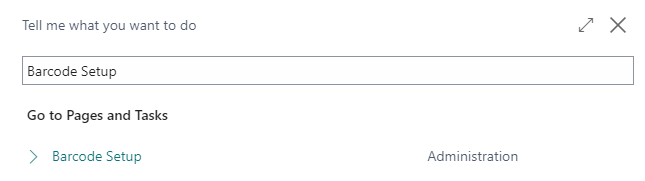
- The Barcode Setup page is displayed.
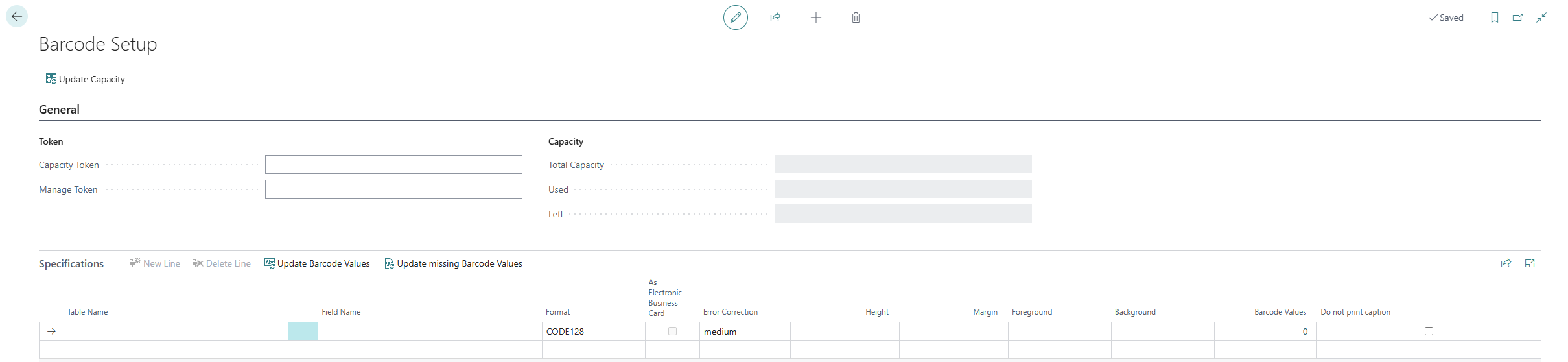
- Enter the tokens provided by your provider in the fields.
- Click the Update Capacity action in the menu bar. The Total Capacity, Used, and Left fields will be updated with values.
The update of the values in the fields indicates that the setup of Beyond Barcodes is complete and the API can be used to generate barcodes.