Schedule Service Orders
This chapter describes how to use the Beyond Scheduler planning table to schedule service orders and assign them to resources.
To schedule service orders, proceed as follows:
- Open the search (ALT+Q) and search for the Service Scheduler page.
- The Service Scheduler page is displayed.
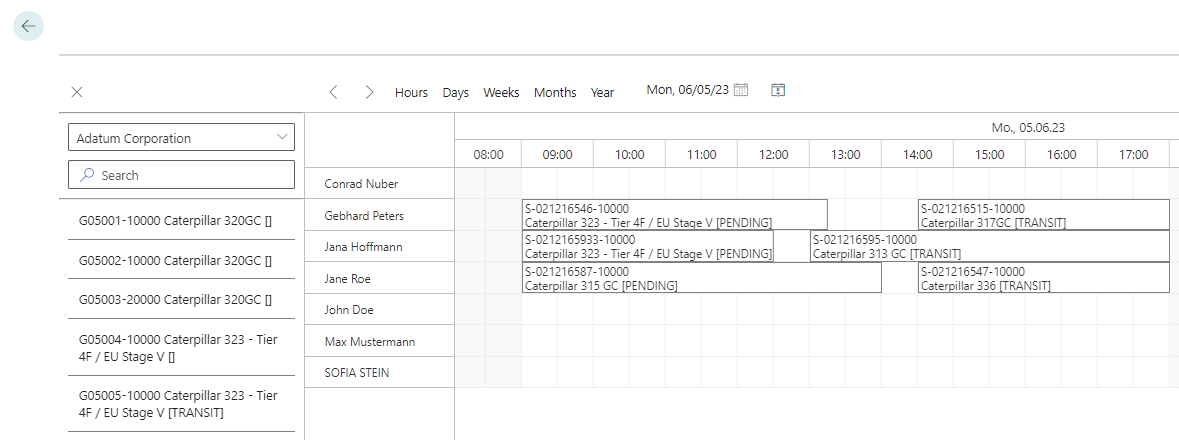
Figure: Service Scheduler - To schedule a service order and assign it to a resource, left-click on a service order. Keep the left mouse button pressed and drag the service order into the planning table into the corresponding row of the resource.
You have assigned a service order to a resource. Further functions for the planning table can be found in the following sections:
Edit Duration of the Service Order
This section describes how to adjust the duration of a service order in the planning table.
To adjust the duration of a service order in the planning table that is already assigned to a resource, proceed as follows:
- Open the search (ALT+Q) and search for the Service Scheduler page.
- The Service Scheduler page is displayed.
Figure: Service Scheduler - To adjust the duration of the service order for the resource, move the mouse cursor to the edge of the service order in the planning table until an arrow icon is displayed.
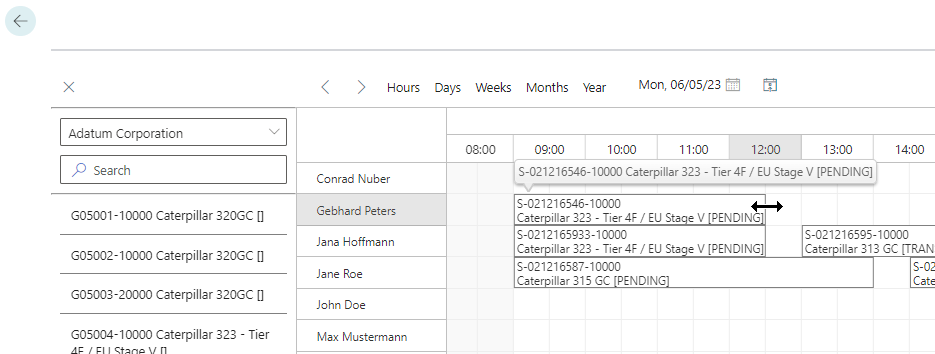
Figure: Schedule and Assign Service Order - Click the left mouse button, hold it down and drag the service order field to the desired size (duration).
You have changed the duration of a service order. The changed start and end time is transferred to the Resource Allocations page of the corresponding service item.
Delete Service Order from Planning Table
This section describes how to remove a service order from a resource planning row.
To delete a service order from the planning table, proceed as follows:
- Open the search (ALT+Q) and search for the Service Scheduler page.
- The Service Scheduler page is displayed.
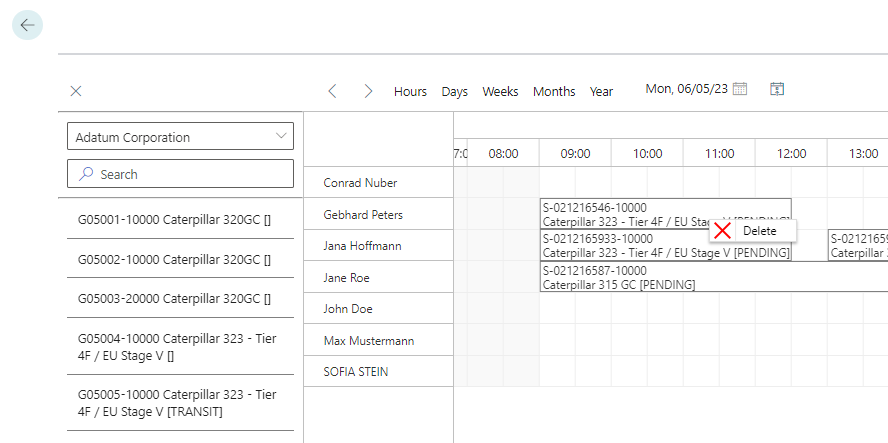
Figure: Service Scheduler - To remove service orders from the planning table, right-click the corresponding service order in the planning table and select Delete from the context menu.
You have deleted the service order from the planning table. The service order is displayed again in the order selection view after refreshing the table. To do this, click the refresh icon ( ) on the right edge of the screen.