Transfer Journal Batch
This chapter explains the functions of Beyond Mobile Warehouse in relation to the Transfer Journal Batch in Business Central.
Note
Please note that a corresponding document must always be available in the system in order to use Beyond Mobile Warehouse. Only an existing transfer journal batch can be selected via the app's user interface. It is not possible to create a transfer journal batch via Beyond Mobile Warehouse. If you do not have a transfer journal batch, you must create it in the standard Business Central app.
Note
Use of transfer order or transfer worksheet
The following information is only a recommendation. If you are unsure whether you use a document-based warehouse process in your company/location (e.g., from the warehouse to the service vehicle), please contact the person responsible.
Beyond Mobile Warehouse offers you two options for transferring items. The following table will help you decide whether to use the transfer order or the transfer worksheet:
| Situation | Transfer Worksheet | Transfer Order |
|---|---|---|
| Quick transfer of items within a warehouse location from one bin to another bin | suitable | unsuitable |
| Extensive movements/corrections of item stocks within one warehouse location | suitable | unsuitable |
| Item transfers with warehouse documents (Warehouse receipt and warehouse shipments) | unsuitable | suitable |
| Transfers between warehouse locations (from the main warehouse to the external warehouse) | mostly unsuitable | suitable |
Change Bin for Items
This section describes how you can use Beyond Mobile Warehouse to change the storage bin of an item in your warehouse to another storage bin within the same warehouse.
- Open the search field (ALT+Q) and search for the page Inventory App.
- The Inventory App page is displayed.
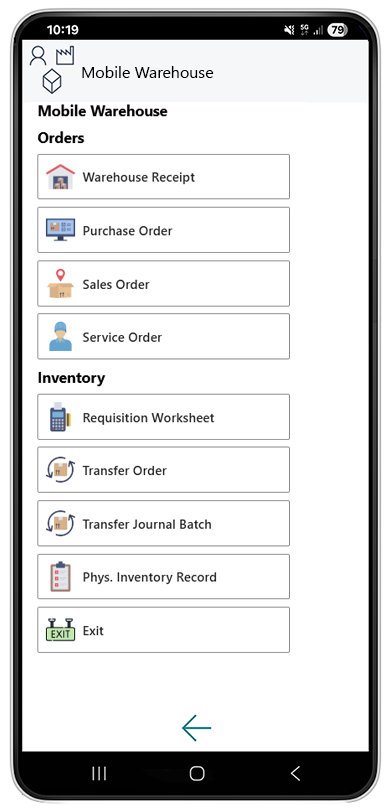
- Select Transfer Journal Batch.
- The document selection is displayed.
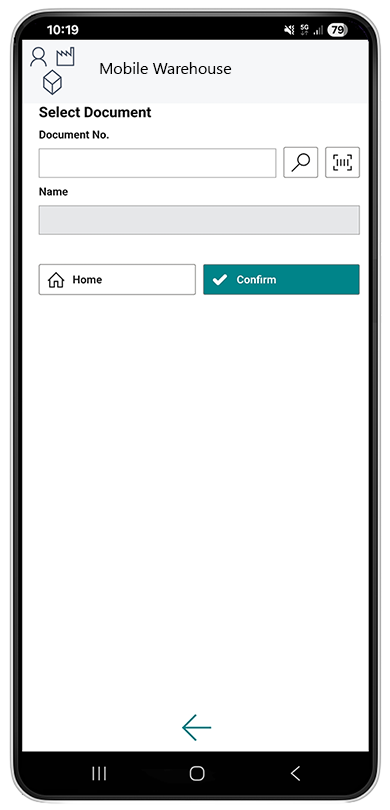
- Select a document:
- Use the scanner function
 with your mobile device and scan the barcode of the transfer journal batch page.
or - Select the magnifying glass icon
 to select the transfer journal batch from the overview of all item journal batches.
After selecting the document, additional information is displayed in the fields.
- Use the scanner function
- Select the Confirm
 icon.
icon. - The transfer journal batch card is displayed.

- To select an item, enter the item number in the Item No. field:
- Use the scanner function with your mobile device and scan the item barcode.
or - Select the magnifying glass icon to select an item from the overview of all items.
- Use the scanner function
- Select the storage location in the Location field.
- In the Bin field, select the bin of the item where it is currently stored.
- Use the scanner function with your mobile device and scan the storage bin barcode.
or - Select the magnifying glass icon to manually select a storage bin from the overview of all storage bins.
- Use the scanner function
- Select the new storage location for the item in the New Location field.
- In the New Bin field, select the bin of the item where it will be stored in future.
- Use the scanner function with your mobile device and scan the storage bin barcode.
or - Select the magnifying glass icon to manually select a storage bin from the overview of all storage bins.
- Use the scanner function
- You can increase or decrease the number of items using the plus and minus buttons under Quantity.
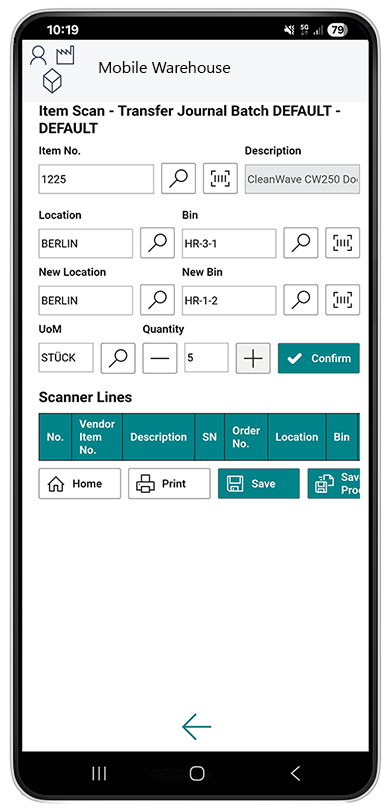
- To add the item in the specified quantity to the lines, select the Confirm button.
- The item line is added.

- If you want to transfer an item that requires a serial number, you must enter the serial numbers of the items. Select the symbol under the SN column and enter the serial numbers.
- To save only the changes to the document, select Save. If you also want to post the document, select Save + Process.
You have moved an item.