Add Serial Numbers to Items
This chapter describes how you can add serial numbers for items using Beyond Advanced Serial No. Beyond Advanced Serial No adds the Serial Number column to the line area in sales and purchase documents. You can enter the serial number in this column. The function is explained below using a sales order as an example.
Note
Setup required
Basic setup is required for the function shown. The chapter Set Up Simplified Serial Number Tracking describes in detail how to set up simplified serial number tracking. If you have any questions about this feature, please feel free to contact us. You will find the relevant contact details in the chapter Preface.
To add serial numbers to items using simplified serial number tracking, proceed as follows:
- Open the document in which you want to add a serial number to an item. In our example, we are using a sales order.
- Scroll to the Lines tab and select the item to which you want to add a serial number.
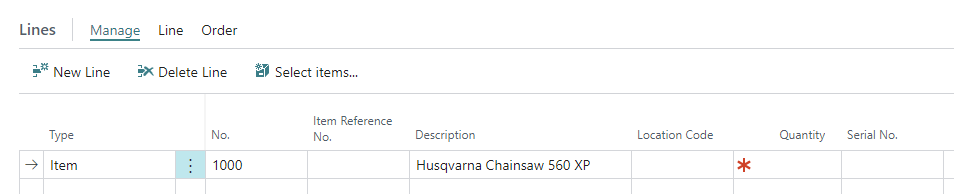
- Enter the value 3 in the Quantity column, for example. If the corresponding service item group with the Split per Serial No. option is activated for this item, one line is created for each item quantity specified.
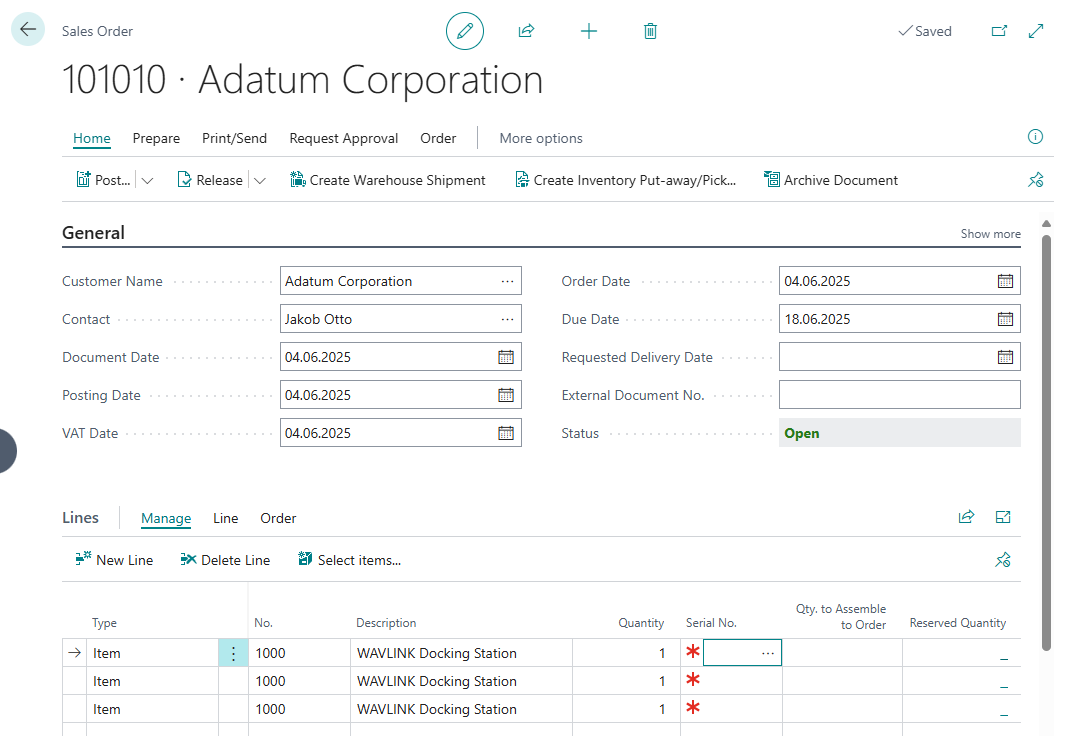
- Enter a serial number for each line in the Serial Number column. Please note that the item tracking code for the item must be specified on the item card under the Item Tracking tab.
You have specified serial numbers for the items. If a service item group is selected for the item in which service items are to be created after purchase or sale, service items are created according to the specified item quantity. The service items have the serial number specified in the line under the Serial No. column. For more information, see the chapter Configuring Automatic Creation of Service Items.