Define Formats
This chapter describes how to define formatting for information in the report. In Beyond Document Designer, formatting refers to the notation of addresses, numbers, monetary amounts, and dates.
[!INOTE]
Please note that fields are only printed in the report if they have a field value. If fields that you add do not have a field value, they will not be printed in the report. If the field is not printed, you must maintain the data and enter a field value.
The contents of this chapter are divided into the following sections:
Setup Field Format
This section describes how to set formatting for a field in a report. Beyond Document Designer allows you to set how field information is printed in the report. This is particularly useful if, for example, you want to print a date in ISO format in all reports or use a country-specific format for a field in all reports. Below is an example of a date format:
| Format Type | American (en-US) | German (de-DE) |
|---|---|---|
| Short Form | 12/31/2025 (MM/DD/YYYY) | 31.12.2025 (DD.MM.YYYY) |
| ISO format (standardized) | 2025-12-31 (is also used in the US for IT/databases) | 2025-12-31 |
| Spoken form | "December 31, 2025" | "31. December 2025" |
In addition to the date format, you can also define formats for numbers and amounts. For example, if you prefer a specific country-specific notation for numbers or amounts, even though the report is executed in the business partner's language, you can define this with Beyond Document Designer. Below are some examples of number notation from German-speaking countries for clarification:
| Country | Notation | Characteristics |
|---|---|---|
| Germany (DE) | 1.000,50 € | Period as thousand separator, comma for decimal places, currency symbol followed by a space |
| Austria (AT) | 1.000,50 € | Just like in Germany |
| Switzerland (CH) | 1'000.50 CHF | Apostrophe (') as thousands separator, period as decimal separator, currency symbol often followed by a space |
| Liechtenstein (LI) | 1'000.50 CHF | Just like in Switzerland |
| Luxembourg (LU) | 1.000,50 € | Mostly German spelling, but often multilingual (French/German) |
| Belgium (BE) | 1.000,50 € | Just like in Germany; however, French-speaking regions write, for example, 1,000.50 € (with a space as the thousand separator). |
| South Tyrol (IT) | 1.000,50 € | German-speaking South Tyroleans use the same format as in Austria/Germany, but in Italian, the period and comma are often reversed (i.e., €1,000.50 or even €1,000.50). |
To define field formatting in Beyond Document Designer, proceed as follows:
- Open the search function from the role center (ALT+Q).
- Search for Beyond Document Designer Setups and click on the corresponding search result.
- The Beyond Document Designer Setups page is displayed.
- Select the appropriate report from the list whose field information you want to format, and click on the value under the ID column in the report line.
- The report card is displayed.

- Scroll down to the Fields section.
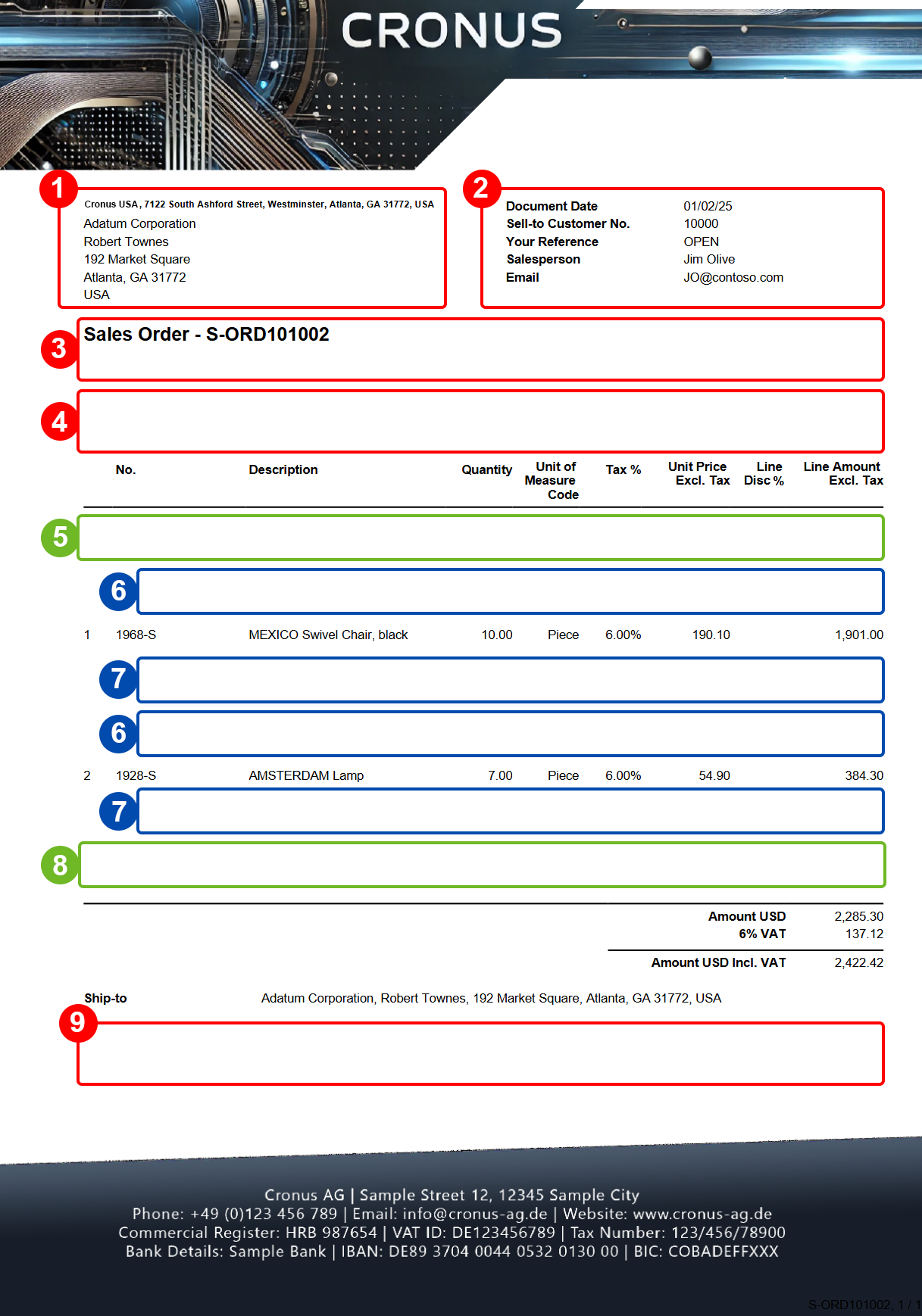
- Under the Fields tab, select the layout area to which you want to add the field. In the following screenshot, you can identify the individual layout areas by number.
- 1: Top Left: This layout area is located at the top left of the report and is primarily used as the address area. For more information on setting the address, please refer to the section Edit Report Address Format.
- 2: Top Right: This layout area is located at the top right of the report and is primarily used to display additional information relevant to the report.
- 3: Top: This layout area is located in the report below the address area and the report information.
- 4: Top Columns: This layout area is located in the report above the column headers for the report lines.
- 5: Before Lines: This layout area is located before all report lines.
- 6: Before Line: This layout area is located before each report line. Please note that this layout area is repeated per line.
- 7: After Line: This layout area is located after each report line. Please note that this layout area is repeated per line.
- 8: After Lines: This layout area is located after all report lines.
- 9: Bottom: This layout area is located at the bottom of the report.
Other selectable areas such as Line, Totals and VAT Specification are reserved by the system and cannot be edited. If you want to hide the VAT Specification report area, you will find the corresponding setting in the Define Print Settings section.
- Click in the corresponding field row on the right-hand side of the Fields area in the Field Format Code column.
- Select the option Select from complete list from the drop-down menu.

- The Select - Field Formats window is displayed.
- Click on the New option in the menu bar of the window. Alternatively, you can also use preconfigured field formats via the Suggest Field Formats option.

- Enter a code for the format in the Code column.
- Enter a description in the Description column.
- Enter the format in the Format column. The corresponding options for designing the format can be found under Formatting values, dates, and time. The Result column shows you an example value.
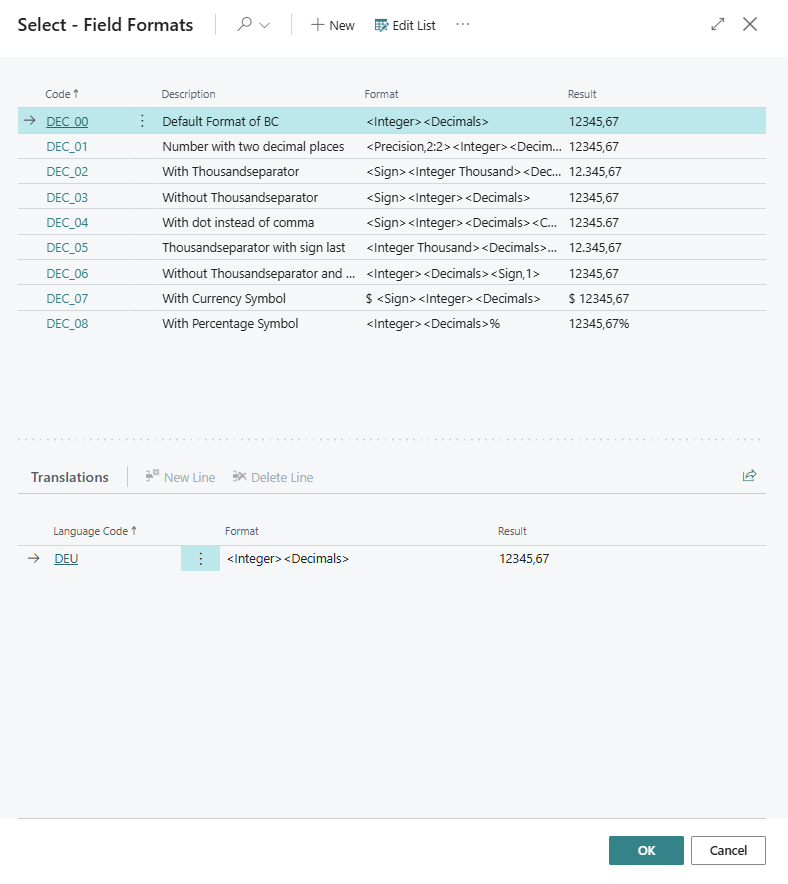
- After defining the format in the Select - Field Formats window, click OK. This applies the format to the field you selected.
Important
Define number formats
When defining formats for numerical values, please note the following: For formats with <Sign>, signs are only displayed if the numerical value is negative. In addition, for certain formats, you should use a protected space (ALT+0160) to ensure that numbers (French notation) are not separated.
You have defined a format. Below you will find the finished examples for different formats.
| Country | Characteristics | Notation | Format | |
|---|---|---|---|---|
| Germany (DE) | Period as thousand separator, comma for decimal places, currency symbol followed by a space | 12.345,67 € | <Sign> |
|
| Austria (AT) | Just like in Germany | 12.345,67 € | <Sign> |
|
| Switzerland (CH) | Apostrophe (') as thousands separator, period as decimal separator, currency symbol often followed by a space | 12'345.67 CHF | <Sign> |
12'345.67 CHF |
| Liechtenstein (LI) | Just like in Switzerland | 12'345.67 CHF | <Sign> |
|
| Luxembourg (LU) | Mostly German spelling, but often multilingual (French/German) | 12.345,67 € | <Sign> |
|
| France (FR) | Protected space as thousand separator, decimal separator with comma, currency symbol with protected space after the amount | 12 345,67 € | <Sign> |
Edit Report Address Format
This section describes how you can edit the address format.
To edit the address format for a report, proceed as follows:
- Open the search function from the role center (ALT+Q).
- Search for Beyond Document Designer Setups and click on the corresponding search result.
- The Beyond Document Designer Setups page is displayed.
- Select one of the available reports from the list and click on the value under the ID column in the report line.
- The report card is displayed.

- Scroll down to the Fields tab.
- In the dropdown menu for the layout area, select the value Top Left.
- In the list for the Top Left layout area, there are two lines of the type Address. The two address lines control the content and the display of the addresses on the report.
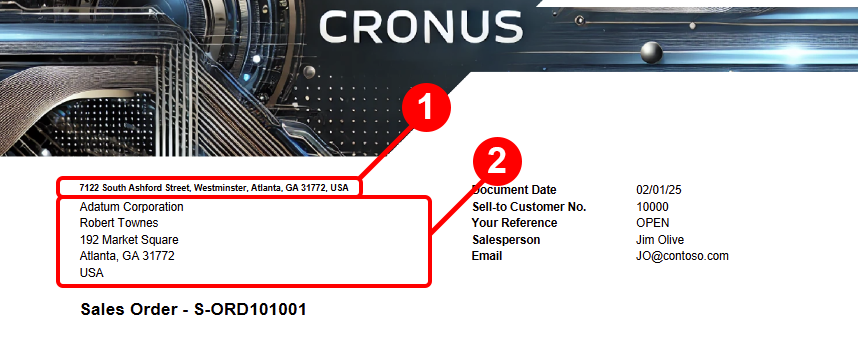
- You can edit the font style, font size and font on the right-hand side of the corresponding line. To edit the printed content in the address fields, click on the value in the No. column in the corresponding line under the Fields tab. Open the dropdown menu and click on the Show Details option.

- The Report Address Formats window is displayed.
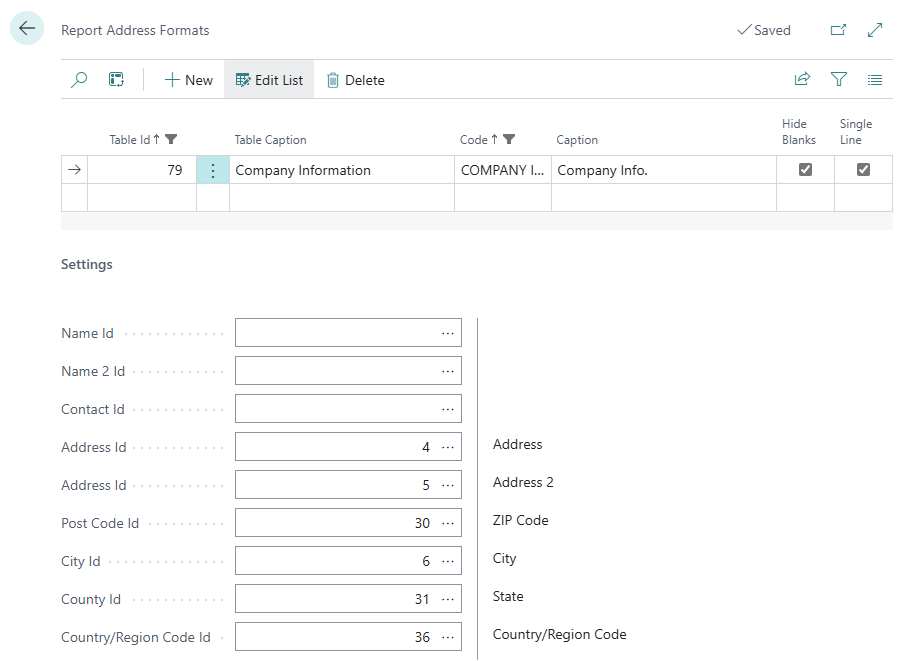
- A configuration is already defined by default on the Report Address Formats page.
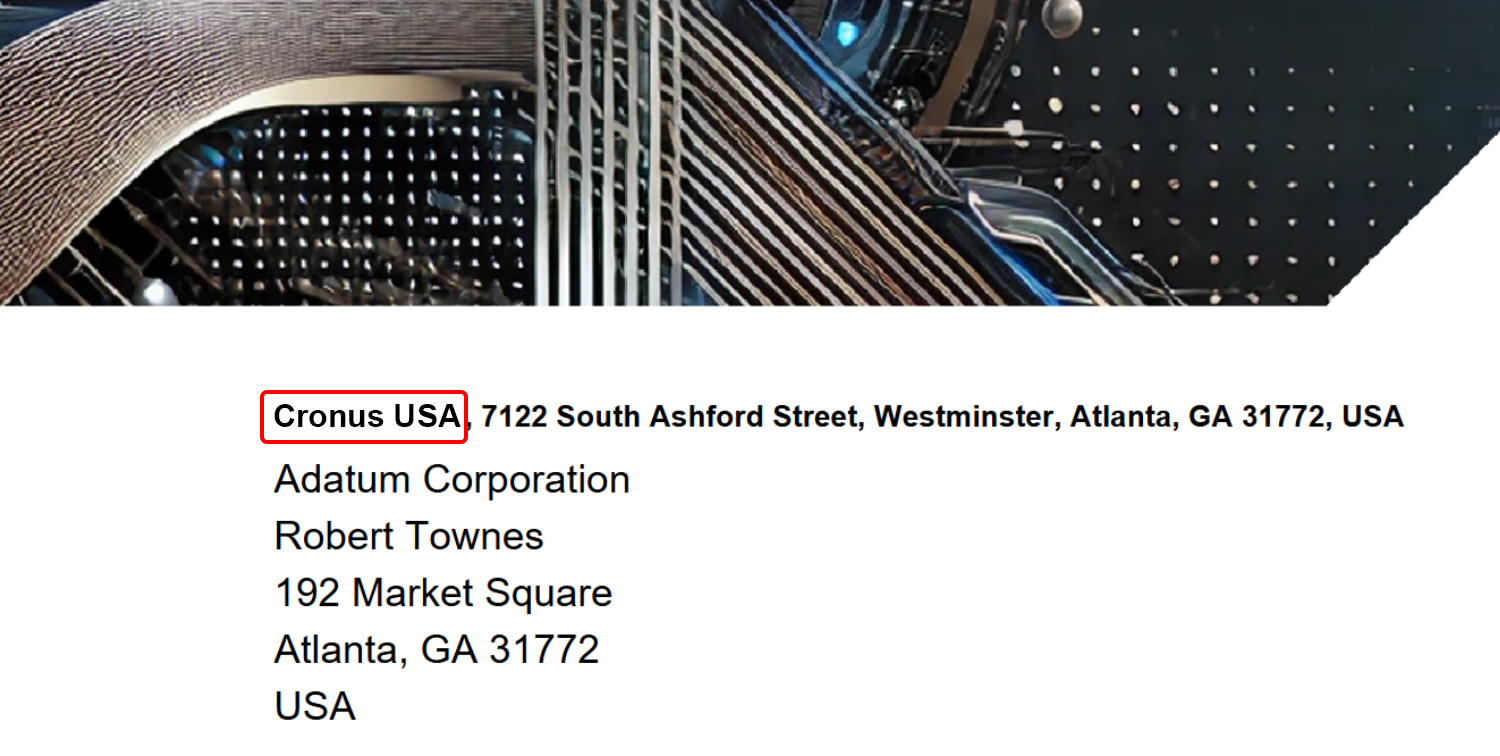
- If you want to include additional information, such as the company name in the address area (1), open the dropdown menu under the Name ID field and select the Name value from the Fields Lookup.
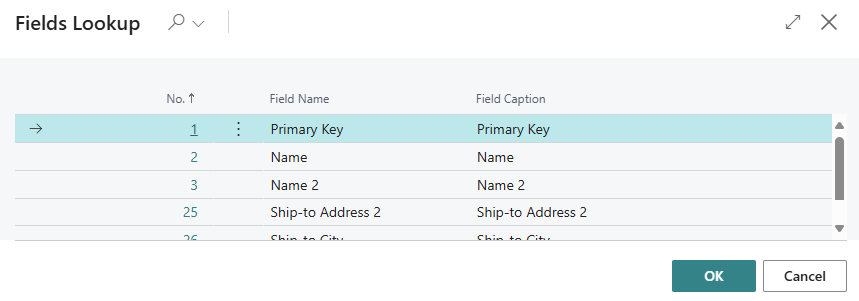
- To apply the change and add the name of your company to the address field, click OK.
- The window is closed and the selected value is transferred to the Name ID field.
- To close the Report address formats window and return to the Report settings page, press the ESC key on the keyboard.
Note
Info
Please note that the report you want to use must be activated in your Business Central. For more information on how to deactivate the standard report from Business Central and activate the reports from Beyond Document Designer, please refer to the chapter Activate Reports.
You have edited the address line. For more information on how to add a new field with a field value to a layout area, see the section Add Field to Report.
Beyond Document Designer also allows you to reference field values that are related to the source field (Salesperson Code -> Salesperson Name). For more information on how to add a related field to a report, see the section Add Related Field to Report.