Add barcode to report
This chapter describes how to add a barcode to a report.
[!INOTE]
Display of added fields
Please note that only fields in the report will be printed if they have a field value. If fields that you add do not have a field value, they will not be printed in the report. If the field is not printed, you must maintain the data and specify a field value.
[!INOTE]
Print settings for added fields
Please note that changes to the formatting in the Fields section override the general print settings, i.e. if you make a change to the Font, Font size, Print Bold, and Alignment columns for this line, it will only affect this line.
Tip
Display report preview in a separate browser window
A preview of the report is displayed in the factbox (ALT+F2). However, to customize reports quickly and easily, we recommend opening the report preview (on the Report Setup page) in a separate browser window. If you make a change to the report design, you can then track the change to the report at any time by clicking the Refresh button.
To add a barcode to reports, proceed as follows:
- Open the search function from the role center (ALT+Q).
- Search for Report Setups and click on the corresponding search result.
- The Reports Setups list is displayed.
- Consider where you want to add a barcode and what information the barcode should display. In this example, we want to print the serial number of the item as a barcode in the report after the item line in sales orders. To print serial numbers in reports, you must install and license the Beyond Advanced Serial No app.
- Select the report from the list and click on the value under the ID column in the report line.
- The report card is displayed.

- Under the Fields tab, select the layout area to which you want to add the barcode. In the following screenshot, you can identify the individual layout areas by number.
- 1: Top Left: This layout area is located at the top left of the report and is primarily used as the address area. For more information on setting the address, please refer to the section Edit Report Address Format.
- 2: Top Right: This layout area is located at the top right of the report and is primarily used to display additional information relevant to the report.
- 3: Top: This layout area is located in the report below the address area and the report information.
- 4: Top Columns: This layout area is located in the report above the column headers for the report lines.
- 5: Before Lines: This layout area is located before all report lines.
- 6: Before Line: This layout area is located before each report line. Please note that this layout area is repeated per line.
- 7: After Line: This layout area is located after each report line. Please note that this layout area is repeated per line.
- 8: After Lines: This layout area is located after all report lines.
- 9: Bottom: This layout area is located at the bottom of the report.
Other selectable areas such as Line, Totals and VAT Specification are reserved by the system and cannot be edited. If you want to hide the VAT Specification report area, you will find the corresponding setting in the Define Print Settings section.
- Under the Fields tab, select the After Line layout area (7). This layout area is repeated for each item and is therefore suitable for displaying a serial number as a barcode for each item. If an item is not subject to serial number tracking, the field is automatically omitted and no barcode is printed in the report for this item.
- To print the serial number as a barcode for an item line in the sales order, select the value Field in the After Line layout area in a new line for the Type column.
- Enter the value 37 (Sales Line) in the Table ID column.
- Under the No. column, define 70838901 (BYD RW Serial No.). This value is only available if you have installed and licensed the Beyond Advanced Serial No extension.
- To display the serial number as a barcode, you must select one of the following fonts under the Font column:
- IDAutomationC39S: In the configuration described above, this font converts the serial number into a small (S) C39 barcode. This barcode is often used in the military, automotive, and healthcare sectors.
- IDAutomationC128S: This font converts the serial number into a small (S) C128 barcode. This barcode is often used in logistics and industry.
- IDAutomationUPCEANS: This font converts the serial number into a small (S) UPC/EAN barcode. The default format is “UPC-E.”
- IDAutomation2D: This font converts the value into a 2D barcode. In this format, you can use AssistEdit (...) to select additional subformats: Atzec, DataMatrix, Maxi Code, PDF417 und QR-Code.
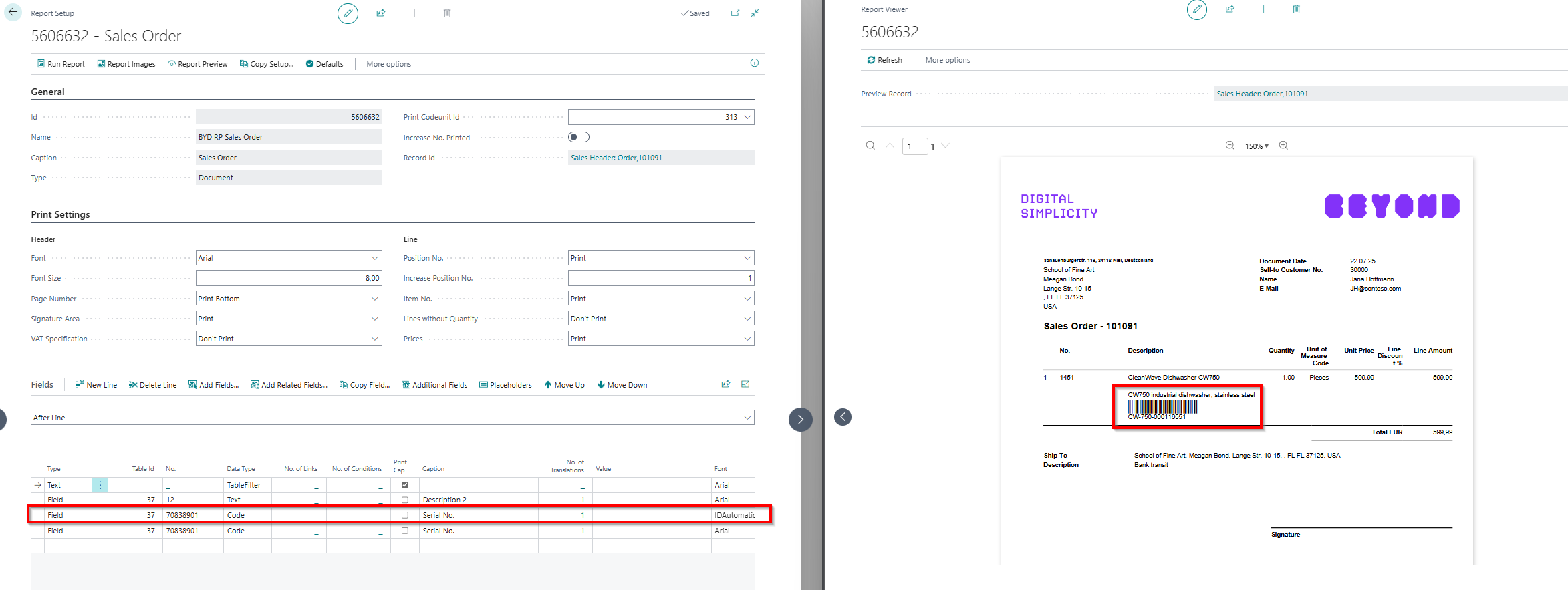
You have added a barcode to a report.