Edit Recorded Times
This chapter describes how you can edit recorded times. In addition to changes to the start and end times, you can also assign the recorded times to a different work sheet. The contents of this chapter are divided into the following sections:
Edit Start Time
This section describes how you can edit the start time of a recorded time.
To edit the start time, proceed as follows:
- Open the search function from the role center (ALT+Q) 🔍.
- Search for the page PDA Times and click on the corresponding search result.
- The PDA Times page is displayed.
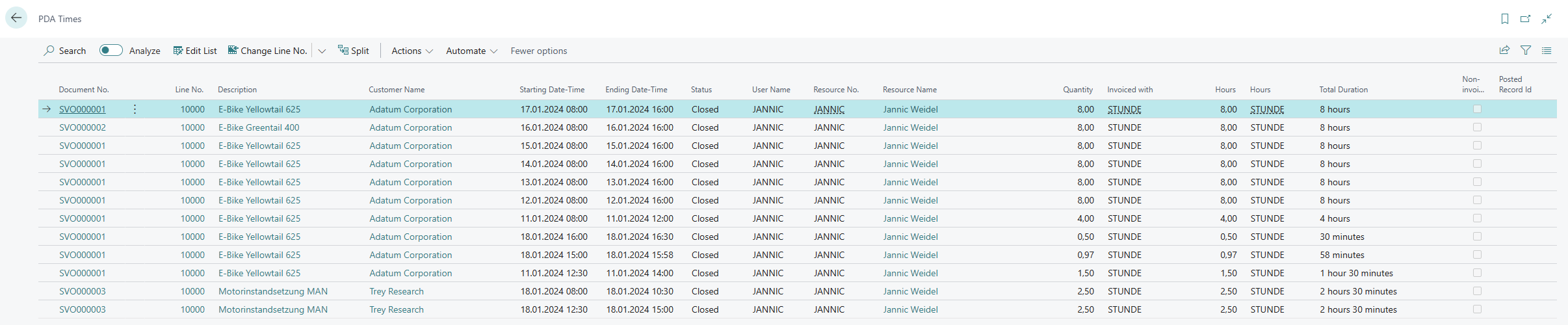
- Select the line for which you want to change the start time.
- Expand the dropdown menu for the Change Line No. menu option.
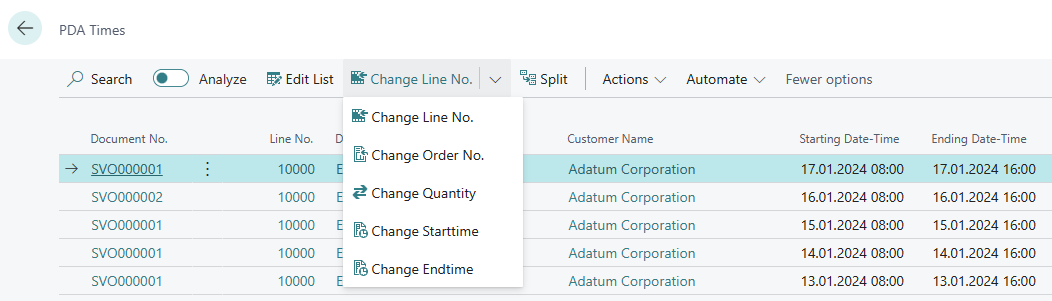
- Click on the Change Starttime option in the dropdown menu.
- A window is displayed.
- Enter the start date for the line in the Date field.
- Enter the start time for the line in the Time field.
- Confirm the changes by closing the window using the OK button.
You have changed the start time for the line.
Edit End Time
This section describes how you can edit the end time of a recorded time.
To edit the end time, proceed as follows:
- Open the search function from the role center (ALT+Q) 🔍.
- Search for the page PDA Times and click on the corresponding search result.
- The PDA Times page is displayed.
- Select the line for which you want to change the end time.
- Expand the dropdown menu for the Change Line No. menu option.
- Click on the Change Endtime option in the dropdown menu.
- A window is displayed.
- Enter the end date for the line in the Date field.
- Enter the end time for the line in the Time field.
- Confirm the changes by closing the window using the OK button.
You have changed the end time for the line.
Assign Recorded Times to Different Worksheet
This section describes how you can assign the recorded times to another worksheet.
To assign the recorded times to another worksheet, proceed as follows:
- Open the search function from the role center (ALT+Q) 🔍.
- Search for the page PDA Times and click on the corresponding search result.
- The PDA Times page is displayed.
- Select the line whose recorded times you would like to assign to another worksheet.
- Expand the dropdown menu for the Change Line No. menu option.
- Click on the Change Order No. option in the dropdown menu.
- A window is displayed.
- Enter the number of the new service document in the Document No. field. To display an overview of all available documents, click on the ellipsis (...).
- Enter the service line of the document in the Line No. field. The recorded times are transferred to this line.
- Confirm the changes by closing the window using the OK button.
You have assigned the recorded times to another service worksheet.