Add Translation for Field Caption
This section describes how you can add a translation for a field label.
To add a translation for a field label to the report, proceed as follows:
- Open the search function from the role center (ALT+Q).
- Search for Report Setups and click on the corresponding search result.
- The Report Setups page is displayed.
- Select the corresponding report in the list and click on the value under the ID column in the report line.
- The report card is displayed.

- Under the Fields tab, select the layout area in which the field is located for which you want to add a translation for a field caption. In this example, a translation is added for a field caption that has been renamed in the Change Field Caption section from Sell-To Customer No. to Customer No.. This field is printed in the Top Right (2) layout area.

- On the Report Setup page under the Fields tab, click in the No. of Translations column in the appropriate line for the field whose caption you want to add a translation for. In our example, we will change the caption for the Customer Number field.
- The Report Translations window is displayed.
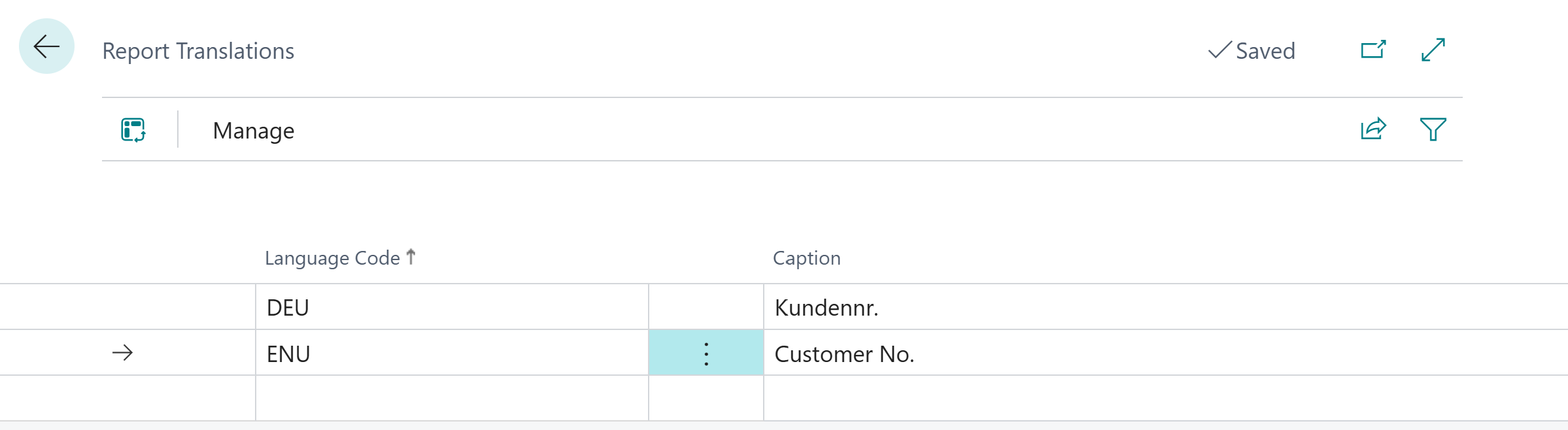
- Under the Language Code column, enter the language in which you would like to store a translation for the field caption.
- Enter the translation in the selected language in the Caption column.
You have stored a translation for a field caption.