Move Files to a Different Category
When uploading files to cloud storage, you are prompted to specify a category per file. The following instructions describe how to move one or more files to a different category.
To do this, proceed as follows:
- If the FactBox with the Dropzone is not yet displayed, show it with the keyboard combination ALT+F2.
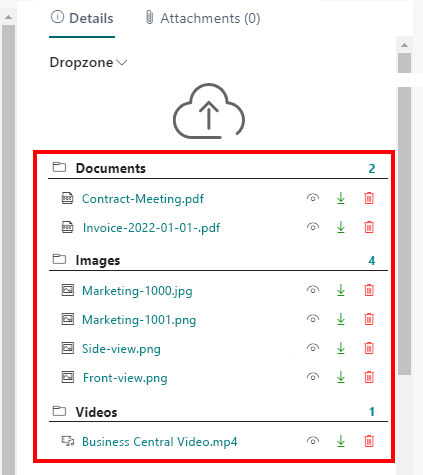
- In the drop zone, click the icons in front of the file names to select individual files. Alternatively, you can select all files in a category by clicking the icon in front of the category name.
- A check mark icon will be displayed in front of the selected files.
- To move the files to another category, click the dropdown menu in the Dropzone.

- Select Move File from the dropdown menu.
- The Select Category window is displayed.
- Select the category to which you want to move the selected files.
- To move the files to the selected category, click OK.
You have moved the files to the category.
For more information on how to set up categories, see the chapter Set Up Categories for Dropzone.