Assign User Permissions
The following description shows how to assign user permissions for the Beyond Attributes Core extension. The permission sets provided are:
| Permission Set | Description |
|---|---|
| BYD AT Reader | This permission set enables the reading of data from the extension Beyond Attributes Core. |
| BYD AT User | This permission set enables the use of the Beyond Attributes Core extension at user level. In this permission set, the setup is excluded, i.e. the user has access to the functions, but not to the setup of the app. |
| BYD AT All | This permission set gives the assigned user administrative access to the Beyond Attributes Core extension and the associated setup. |
To assign the permission set for Beyond Attributes Core to a user, proceed as follows:
- Open the search function from the role center (ALT+Q).
- Search for Permission Sets and click on the appropriate search result.
- The Permission Sets page is displayed.
- Select one of the above permission sets from the list.
- Click Related > Permissions > Permission Set by User in the menu bar.
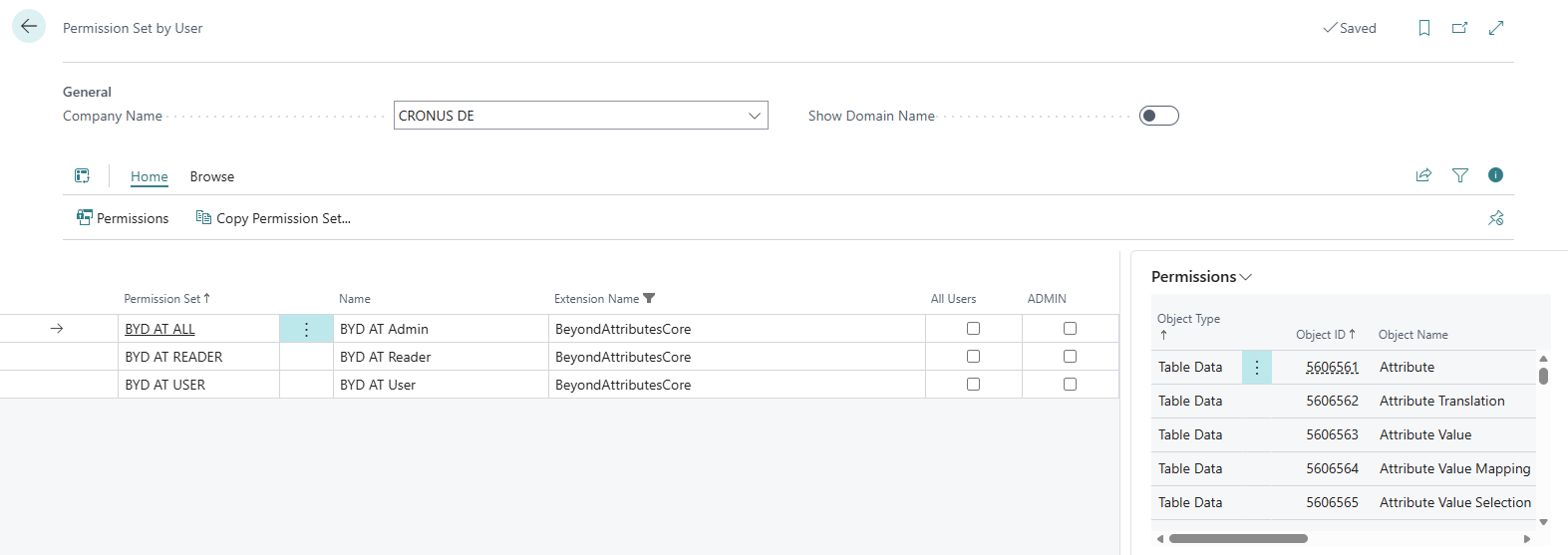
- The Permission Set by User page is displayed.
- Show the filter area (SHIFT+F3) and pick Extension Name and the value Beyond Attributes Core as filter criteria.
- The list is filtered to the permission sets of Beyond Attributes Core.
- Select the check box on the right side of the page for the user or users to whom you want to assign the permission set.
You have assigned a permission set for Beyond Attributes Core to a user. Note that users with the SUPER permission set have all rights, i.e. you do not need to give this user any additional rights.